Getting Started with MomentumFlow
Follow this step-by-step guide to download, install, and configure MomentumFlow Trade Copier with NinjaTrader.
Download & Install NinjaTrader
If you already have NinjaTrader installed, skip to Step 2.
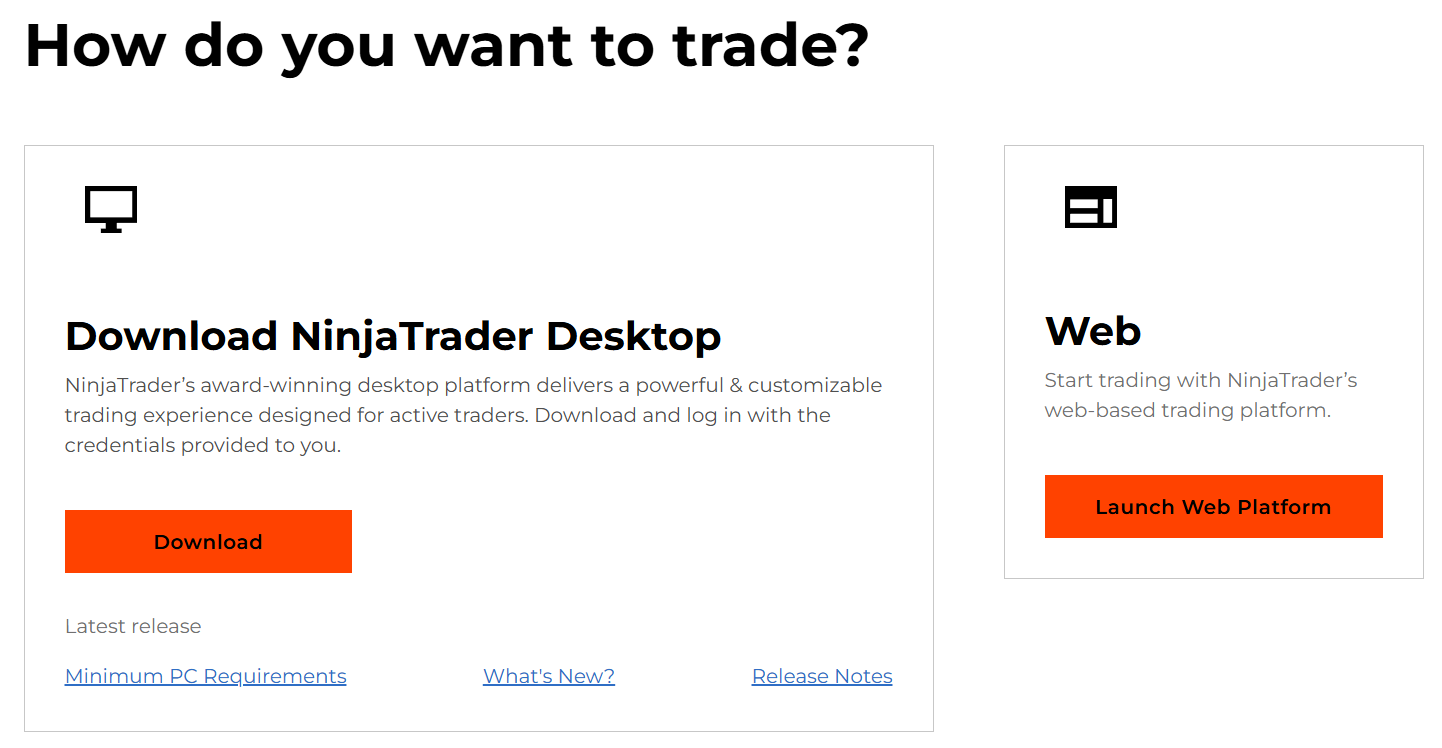
- Go to account.ninjatrader.com
- Create a new account or log in with your existing credentials
- Select Download NinjaTrader Desktop

- Run the installer and follow the installation prompts
- Launch NinjaTrader once installation is complete
Log In to NinjaTrader Desktop
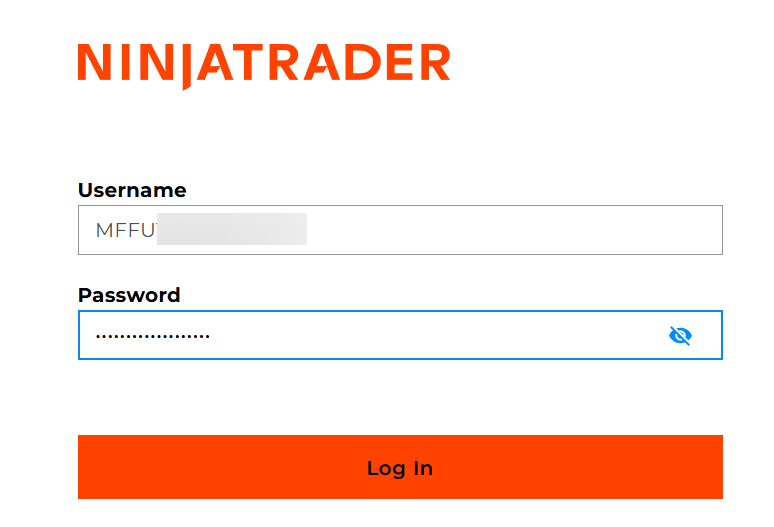
When you launch NinjaTrader Desktop, you'll see the login screen.
- Enter your Username (from your NinjaTrader account)
- Enter your Password
- Click Log In
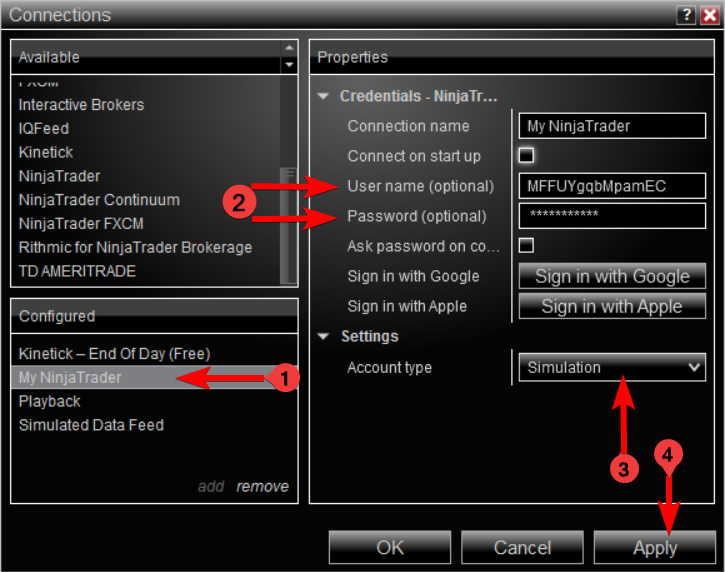
You can also sign in with Google or Apple if you created your NinjaTrader account using those methods.
Connect Your Broker Account
Now let's connect NinjaTrader to your broker so you can trade.
- Click Connections in the top menu bar
- Click Configure from the dropdown

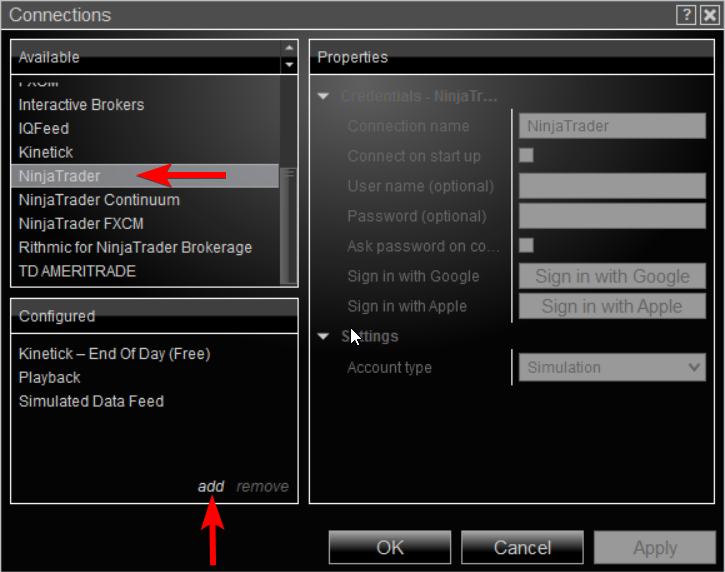
- In the Available list, find and select your broker (e.g., NinjaTrader, Interactive Brokers, Rithmic, etc.)
- Click add at the bottom of the window

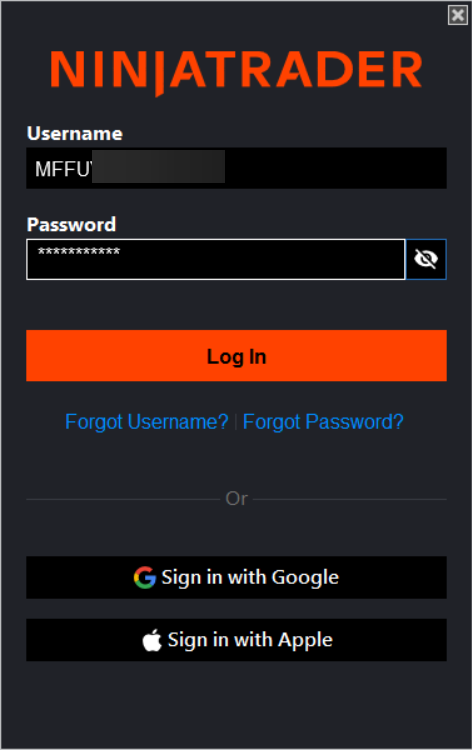
- Your broker will appear in the Configured list — click on it
- In the Properties panel on the right, enter:
- User name (optional): Your broker username
- Password (optional): Your broker password
- Account type: Select "Simulation" or "Live"
- Click Apply, then OK
- Go back to Connections menu and select your broker to connect
- Check the connection status indicator at the bottom-left of NinjaTrader:
Install MomentumFlow Addon
- Download the MomentumFlow addon using the link in your welcome email:
⬇ Download MomentumFlow Addon
- In NinjaTrader, go to Tools → Import → NinjaScript Add-On
- Navigate to your Downloads folder and select MomentumFlowTradeCopier_v4.3.2.zip
- Click Open and wait for the import to complete
- Restart NinjaTrader when prompted
After restarting, go to New menu. You should see MomentumFlow Trade Copier in the list.
Activate Your License
- In NinjaTrader, go to New → MomentumFlow Trade Copier
- The MomentumFlow window will open with a license activation prompt
- Enter your license key (sent to your email after purchase):
- Click Activate
- You should see a confirmation that your license is active
Check your email inbox (and spam folder) for an email from MomentumFlow with subject "Welcome to MomentumFlow! Your License Key Inside"
Create a Trading Group
Now you're ready to set up trade copying!
- In the MomentumFlow window, click Create Group
- Give your trading group a name (e.g., "My Prop Accounts")
- Add your connected trading accounts to the group
- Configure your copy settings:
- Position sizing (fixed lots, multiplier, etc.)
- Symbols to copy
- Order types
- Click Save and start copying trades!
MomentumFlow is now ready to copy trades across your connected accounts. Make a test trade to verify everything is working correctly.
Need Help?
Our support team is here to help you get started.